
Free Tools to Fix Bad Audio & Add Professional Voiceovers
You've got great visuals. Your edits are clean. But once that voiceover kicks in? It's all downhill—buzzing background noise, weird pauses, and flat delivery that feels more awkward than engaging. Sound familiar?
Don't worry, it's not just you. Plenty of creators face the same challenge: getting their video heard as well as it looks. That's why CapCut Web offers free browser-based tools to help you rescue bad voice recordings, upgrade narration quality, and even transform your existing audio into something that sounds brand-new—without needing a mic, studio, or expensive editing software.
Let's walk through how you can clean up rough audio and turn any voice track into something your audience will want to hear—all from your browser.
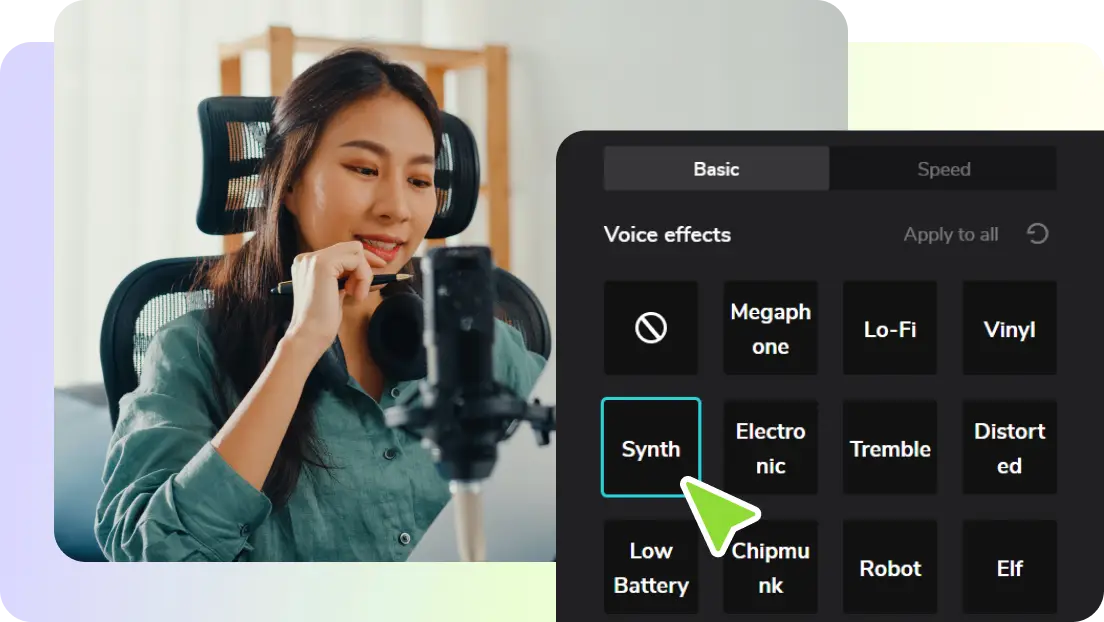
Why bad voiceovers ruin good videos
Consider your voiceover as the glue that holds your visuals together. There is a clear tone, explanation of content, and sustained viewer focus from start to finish. When there are muffled voices, low energy, or just generally difficult to listen to, it immediately disrupts the flow —no matter how well-put-together the visuals are.
Maybe you've recorded something, but it's filled with background noise, or it doesn't sound as expressive as you hoped. Instead of re-recording everything, CapCut Web's voice changer gives you a creative and convenient way to breathe new life into your audio—with effects that are professional, fun, or even a little dramatic.
Fix flat audio using CapCut Web's Voice Changer
You don't need to sound like a voice actor to publish good content. CapCut Web's voice changer enables you to modify existing voice recordings with high-quality effects—perfect for adding personality, masking imperfections, or giving your content a new vibe altogether.
From deep and dramatic tones to playful, robotic, or cartoonish filters, it's a powerful way to turn one voice recording into many creative possibilities. Whether you want to fix a flawed take or give your content a character-driven twist, the voice changer makes it easy—and fun.
Note: CapCut Web's voice changer only works with pre-recorded audio. It does not support live or real-time voice transformations.
Here's how to use the voice changer to transform your audio
You don't need any prior editing experience to make it work. Just follow these simple steps:
Step 1: Upload your audio with issues—or start with a fresh recording
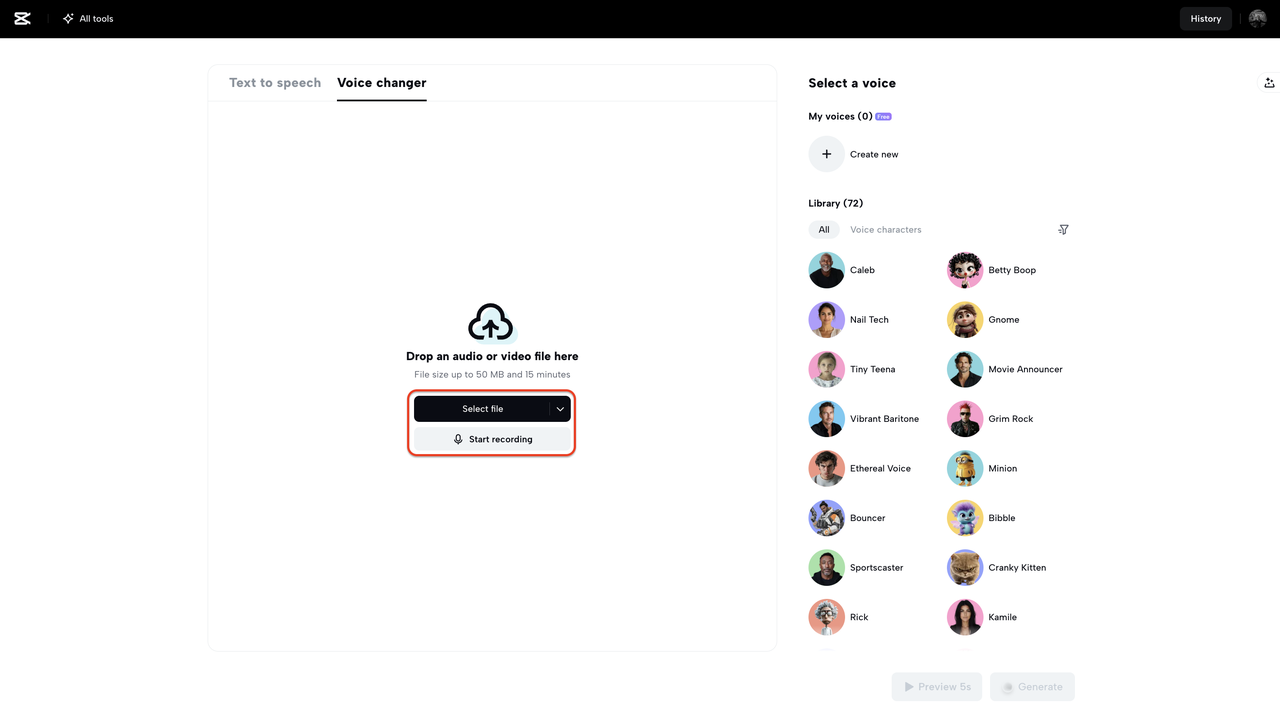
Start by uploading the voice clip you want to improve. It may be muffled, monotone, or not quite right. Drag and drop your audio into CapCut Web or click "Select file" to upload it from your computer. If you don't have a recording yet, hit "Start recording" to speak your script aloud and capture a take directly in the browser—no fancy mic setup needed.
Step 2: Choose a voice effect and preview your new sound
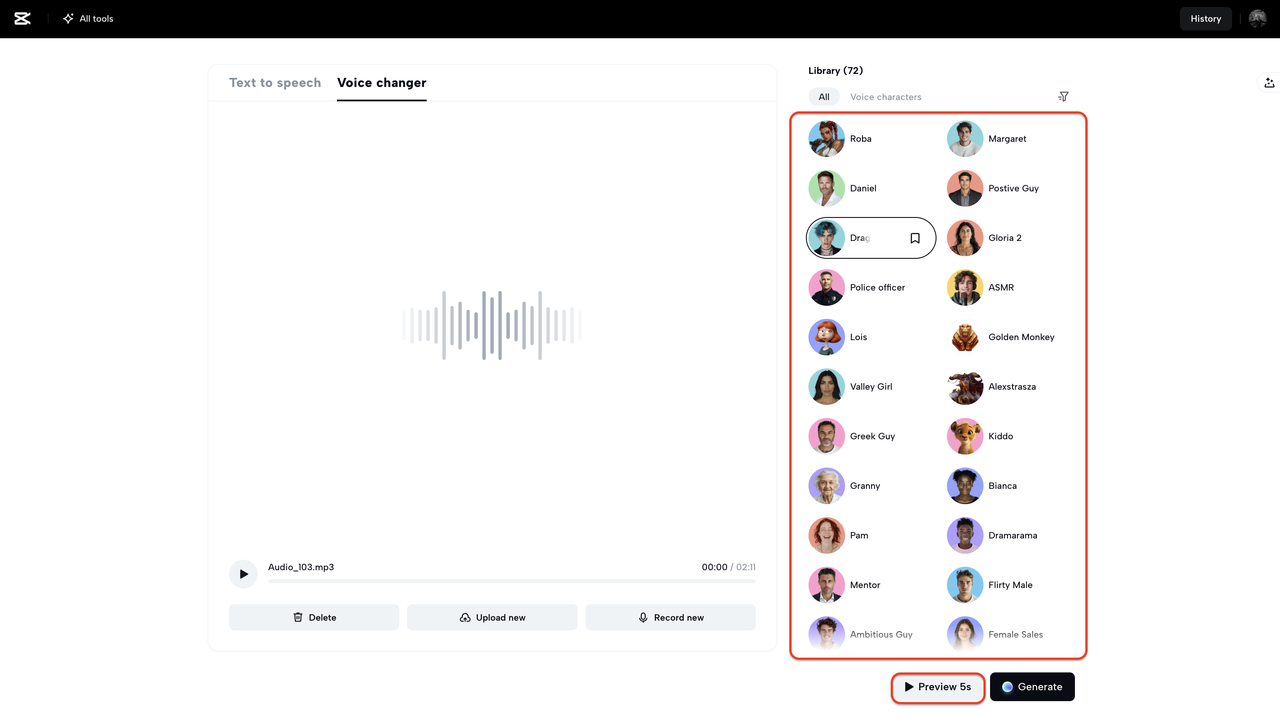
Once your audio is uploaded or recorded, head to the voice effects panel on the right. This is where the transformation happens. Want your voice to sound more profound and more powerful? Or give it a quirky, robotic twist. CapCut Web's voice changer offers a wide range of creative and expressive options. Click "Preview 5s" to test how each effect sounds before you commit.
Step 3: Finalize and enhance your new voiceover
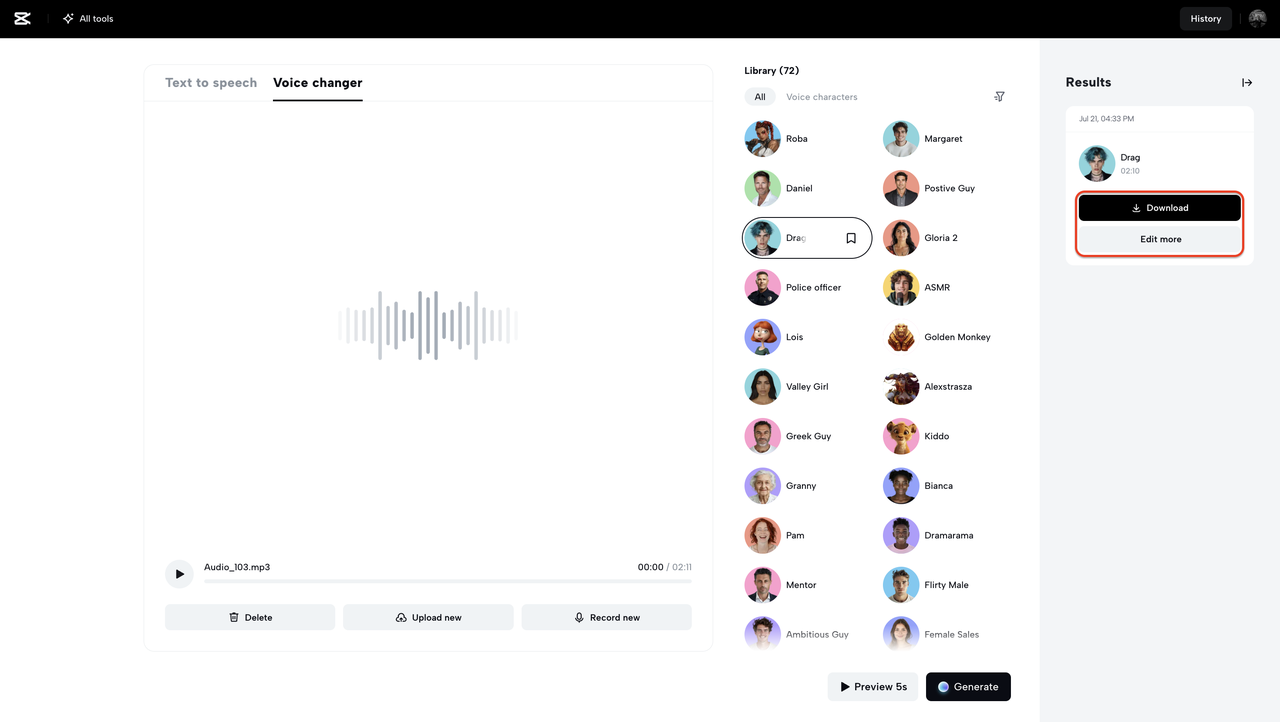
Happy with the new voice? Click "Generate" to create the final version. You can either download the transformed audio or click "Edit more" to polish it further using CapCut Web's built-in AI video editor. Add subtitles, drop in visuals, or pair it with music for a truly professional voiceover presentation—no extra software required.
Already unhappy with your voice? Just skip recording altogether
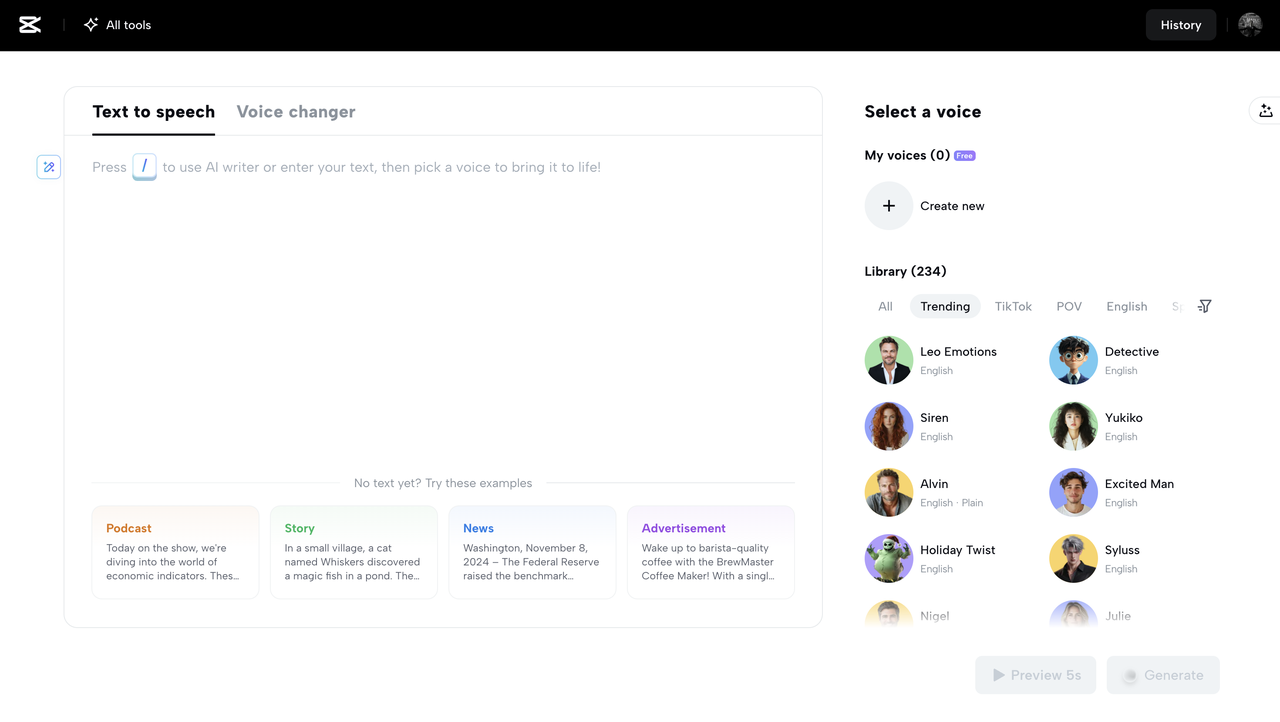
Maybe the issue isn't just how you sound—it's that you'd rather not record at all. That's where CapCut Web's text to audio free tool comes in. Instead of recording, you can paste your script and convert it into a studio-style voiceover within seconds.
With a wide range of AI voices available—covering various languages, emotions, and tones—you can craft narration that fits your content perfectly. You can even fine-tune the delivery by adjusting pitch and speed until it sounds exactly the way you imagined. It's the ideal solution for tutorials, walkthroughs, reviews, or any explainer content where clarity and tone truly matter.
Bring everything together in one browser-based editor
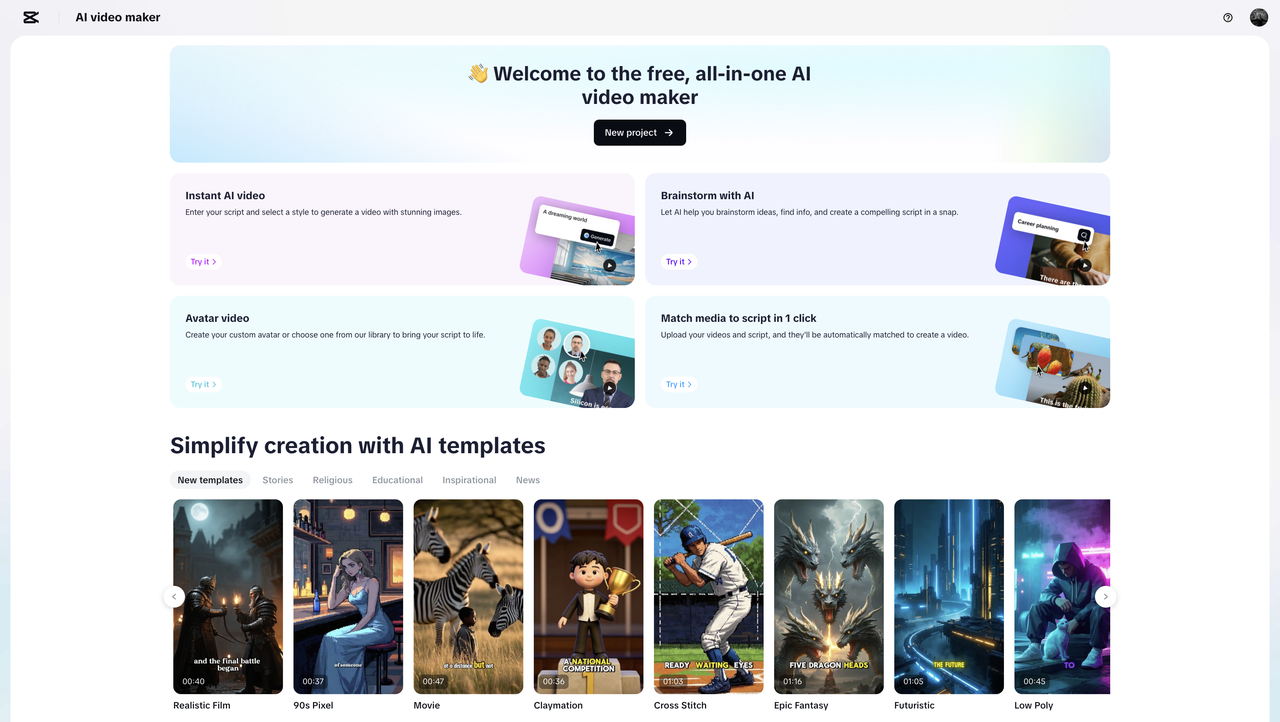
Once your audio is fixed, transformed, or generated, CapCut Web gives you a seamless path to complete your project—all in one browser tab. Using the AI video editor, you can drag in your new voiceover, sync visuals, auto-generate captions, and publish in formats tailored for TikTok, Reels, YouTube Shorts, or anything else.
Need b-roll or stock footage? CapCut Web includes a template library to help build your video even if you don't have clips ready. Want to highlight key moments? Use filters, zooms, or animated stickers to capture attention quickly and effectively.
The result? A professional-looking, scroll-stopping video that sounds as good as it looks—and all without complicated software or costly tools.
Final thoughts: Let your audio tell the story, not ruin it
There's no longer any reason to publish videos with audio you're not happy with. Whether your original recording didn't turn out as expected, your mic setup wasn't ideal, or you want a fresh take without re-recording, CapCut Web helps you fix, voice, and edit everything in one place.
Use the voice changer to breathe new life into dull or damaged recordings. Use text-to-speech to generate voiceovers without ever touching a mic. And use the AI video editor to bring it all together with visuals, effects, and polish.
In just minutes, you can go from "this sounds bad" to "this sounds amazing"—all from your browser, no editing degree required.
So, if your audio is holding back your video, now's the time to fix it. Open CapCut Web and let your content sound the way it was meant to.
